Connect ChatGPT
Connect ChatGPT to SolarSENS MCP with the OAuth login supplied for your organization.
Before you start
-
ChatGPT must allow custom MCP apps for your account or workspace.
-
Your administrator must enable your SolarSENS MCP access.
-
Use this server URL exactly:
https://mcp.solarsens.co/mcp
Your SolarSENS application login and your MCP connector login are separate. The MCP does not ask you to paste a SolarSENS password into a prompt.
Create the SolarSENS app
In the current ChatGPT web UI:
-
Open Plugins from the sidebar.
-
Select Add plugin, then Create app.
-
In the New Plugin dialog, select Create MCP App.
-
Enter
SolarSENSas the name. Select Server URL.The icon is optional. To use the SolarSENS mark, download the SolarSENS app icon. ChatGPT accepts PNG files that are at least 256 × 256 pixels and no larger than 10 KB.
-
Enter the server URL above. Keep OAuth as the authentication method.
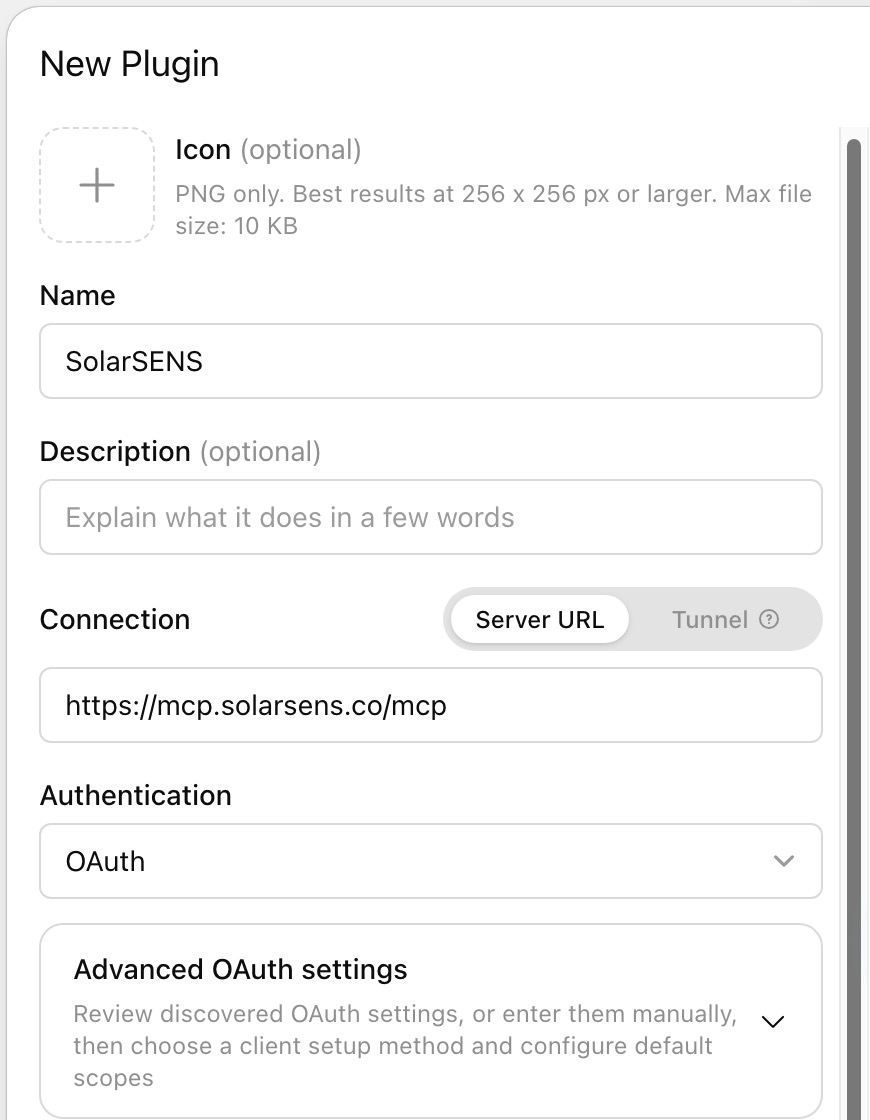
-
Open Advanced OAuth settings. Keep Dynamic Client Registration (DCR) selected when ChatGPT discovers it.
-
Confirm that
read:datais selected. ChatGPT discovers the OAuth endpoints from the server URL.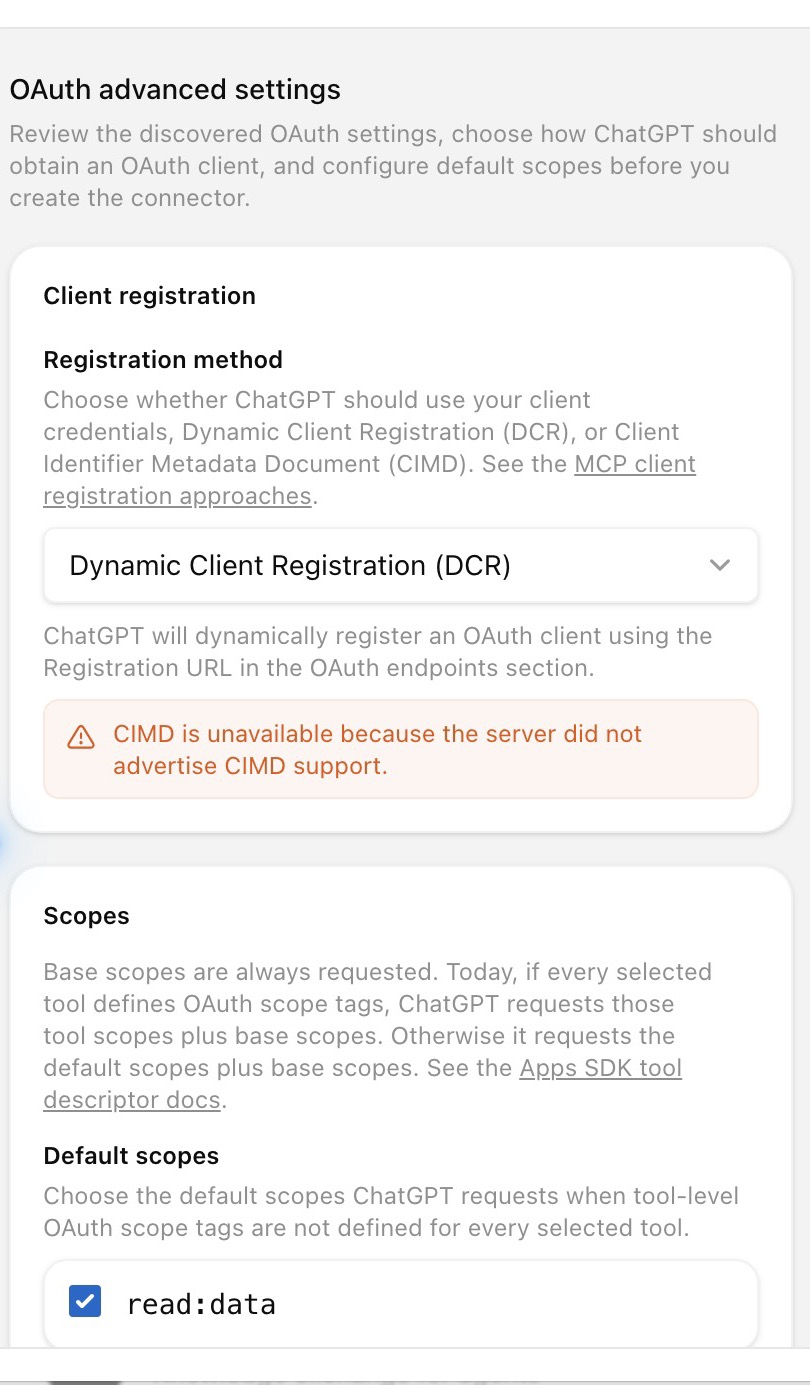
-
Review ChatGPT's custom MCP warning. Select I understand and want to continue, then select Create.
The warning is generic. The SolarSENS MCP tools are read-only. The read:data
scope allows ChatGPT to request only the read access granted to your signed-in
SolarSENS account.
Sign in and approve
- Complete the SolarSENS sign-in page for your organization.
- Review and approve the read-only access request. Return to ChatGPT.
After you return, the Connectors settings list shows SolarSENS with a Connected status.
The connection uses the secure OAuth authorization-code flow with S256 PKCE. The MCP checks the access granted to the signed-in SolarSENS identity before a tool returns Plant data.
Test the connection
Start with discovery:
List the SolarSENS Plants I can access in Kuala Lumpur.
Then ask for a bounded read:
For the Plant you found, show yesterday's performance.
Include the date, timezone, yield, performance ratio, availability, and data
coverage.
The response should name a Plant and show a visible tool-call indicator.
If the assistant returns no Plant, the account is connected but has no mapped Plant scope. Contact your administrator. Do not try to gain access by typing a different Plant ID.
If the connection fails
| What you see | What to check |
|---|---|
| OAuth is not supported | Confirm that the URL ends with /mcp and that you selected OAuth. |
| The browser login succeeds but ChatGPT shows an error | Remove the connector and add it again so ChatGPT starts a fresh authorization flow. |
| The connector connects but no Plants appear | Ask your administrator to check the SolarSENS account-to-Plant mapping. |
| A Plant is forbidden | The Plant is outside the signed-in account scope. This is an access result, not a prompt error. |
| Cloudflare shows "Error 1010" | See Troubleshooting. |
| Auth0 shows "not authorized to access resource server" | See Troubleshooting. |
Verify with MCP Inspector
MCP Inspector is a client-agnostic tool for confirming a connection and its read-only tools. See MCP Inspector.