SolarSENS AI
Ask questions about SolarSENS monitoring data in ChatGPT, Claude, or OpenCode. The connection is read-only and follows the Plants that your SolarSENS account is allowed to see.
Start here
- Connect ChatGPT, connect Claude, or connect OpenCode.
- Ask the assistant to list the SolarSENS Plants available to you.
- Ask for a bounded result with a date range, timezone, and the values you want to review.
The assistant uses a normal conversation. You do not need to learn API syntax to get started.
Give the setup to an AI agent
Paste this prompt into your AI tool:
Read https://ai.solarsens.co/start.md then help me connect SolarSENS to this AI.
The setup skill tells the AI how to add the server for its client, how to guide you through the browser sign-in, and how to check the connection. For ChatGPT and Claude Desktop, the AI gives you the Settings steps because it cannot change those settings itself.
If your AI tool cannot open web pages, paste this longer prompt instead. It tells the agent to configure the connection with the client’s native MCP flow and to keep the first check read-only.
Set up the SolarSENS MCP for this session.

Use the remote MCP server at https://mcp.solarsens.co/mcp. Use your native
OAuth or PKCE flow. If a browser sign-in or approval is required, ask me to
complete it; do not ask me to paste a SolarSENS password, access token, or
client secret into chat or a project file.

After the connection is ready:
1. Check the server status and list its available MCP tools.
2. Use the read-only discovery tool to find a Plant I am allowed to access.
3. Read an overview only for the Plant returned by discovery.
4. Report the server status, tools used, Plant scope, date range, timezone, and
   data coverage. Do not call a tool that changes data or configuration.

If you need OpenCode-specific steps, follow
https://ai.solarsens.co/docs/installation/opencode/ and its official MCP
configuration rules.
MCP convention: the server provides capabilities such as tools, resources, prompts, and server instructions. Client-side skills or instruction files provide a repeatable workflow for a particular agent. The setup skill and the prompts above are public setup aids. They do not install anything hidden and do not grant Plant access. Some agent clients also support project instruction files or skills. Use those files for this workflow only, never for passwords or tokens. The signed-in SolarSENS account remains the source of authorization.
What you can ask
- Find accessible Plants by name or code.
- Read Plant identity for an accessible Plant: name, code, timezone, and status.
- Review daily performance for a date range: yield, performance ratio, availability, and irradiation.
- Compare accessible Plants over the same period.
The MCP does not list devices, read alarms, manage work orders, change configuration, run arbitrary queries, or export private data.
A safe first question
Use a city or another non-sensitive description in examples and prompts:
Find the SolarSENS Plants I can access in Kuala Lumpur.
Then continue with the exact Plant returned by the assistant:
Show daily performance for that Plant from 2026-09-01 to 2026-09-07.
Include yield, performance ratio, availability, timezone, and data coverage.
Demo and live connections
The homepage conversation uses a dedicated demo account. After sign-in, the Cloudflare Agent calls the production SolarSENS MCP and shows only the Plants authorized for that account. A connected ChatGPT or Claude session uses the same OAuth boundary with its own signed-in account.
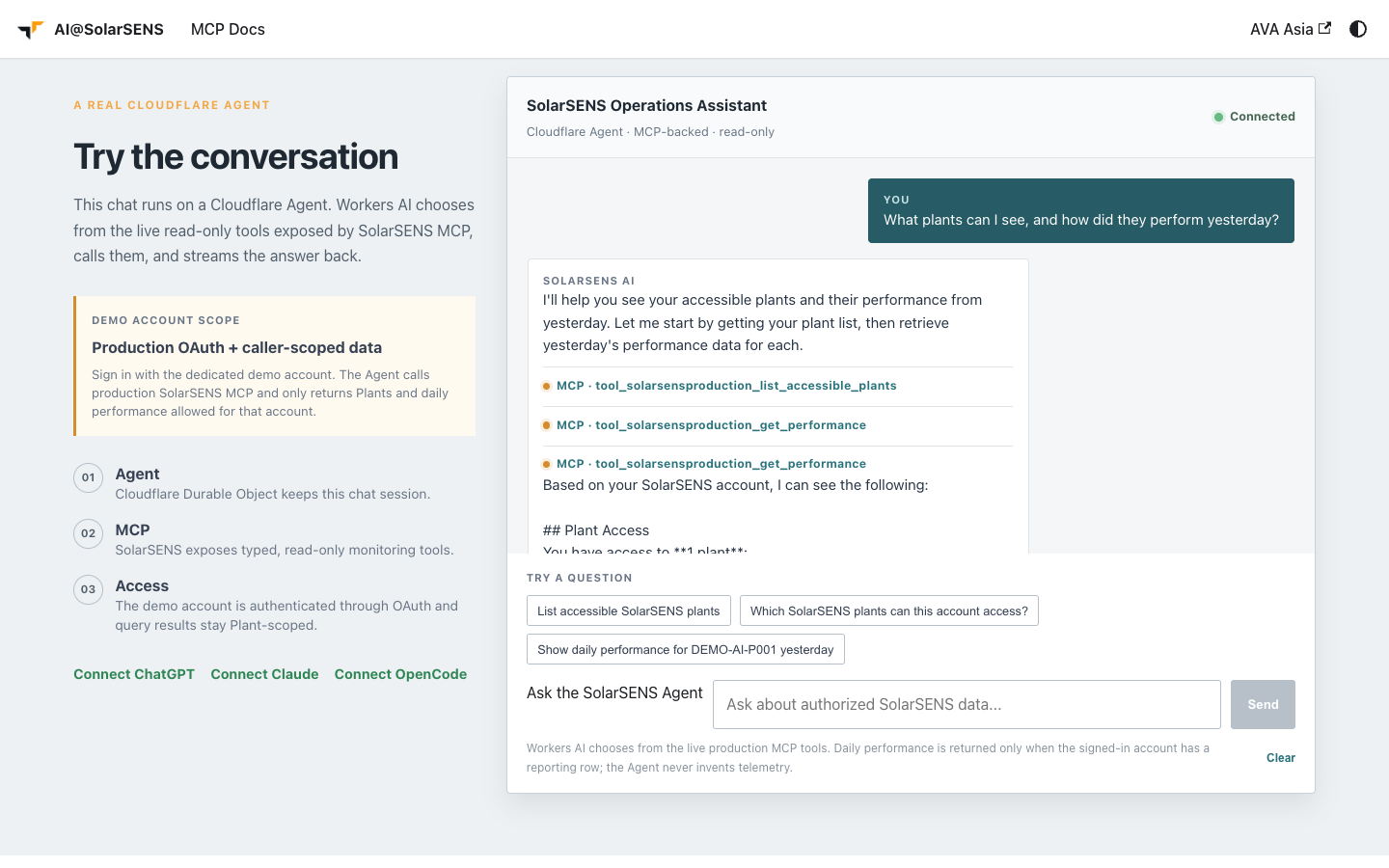
The homepage runs the same production MCP server as a real connection. It
does not use synthetic or customer data. The demo account can see one Plant,
DEMO-AI-P001.