Connect OpenCode
Connect OpenCode to SolarSENS MCP and ask read-only questions about the Plants available to your SolarSENS account.
Before you start
- Install OpenCode 2.x.
- Use a project folder where OpenCode can create
opencode.json.
SolarSENS uses Dynamic Client Registration (DCR). OpenCode registers its own OAuth client automatically; you do not need a client ID for most tenants. If your administrator disabled DCR for your tenant, use the manual client ID fallback below instead.
The MCP login is separate from the SolarSENS web application login. Do not put
your SolarSENS password or an access token in opencode.json.
Use the canonical server
For SolarSENS data, use only:
https://mcp.solarsens.co/mcp
Do not use a date-stamped workers.dev URL, a server named
solarsens-preview, or a fixture token. Those were test deployments and are
not connected to the signed-in SolarSENS account or its Plant scope. If an old
server appears in an OpenCode session, start a new session and keep only the
solarsens entry in opencode.json.
Add the server
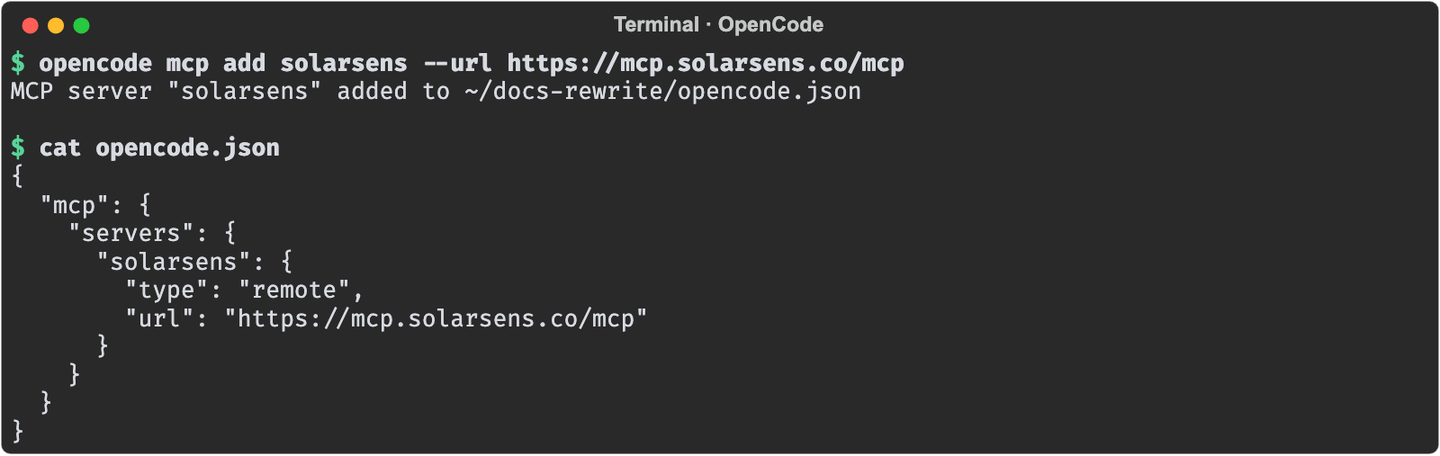
From your project folder, run:
opencode mcp add solarsens --url https://mcp.solarsens.co/mcp
This writes the following to opencode.json. It contains no account, Plant,
or token data.
{
  "mcp": {
    "servers": {
      "solarsens": {
        "type": "remote",
        "url": "https://mcp.solarsens.co/mcp"
      }
    }
  }
}
Check the connection entry:
opencode mcp list
Before sign-in, OpenCode shows:
solarsens needs authentication
This means OpenCode found the server. It has not received an OAuth token yet.

Complete OAuth sign-in
Run:
opencode mcp auth solarsens
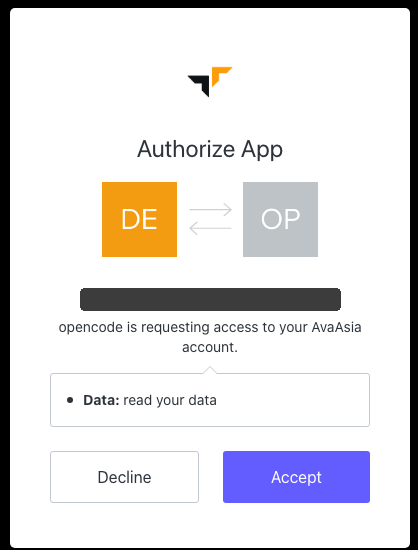
OpenCode registers its own OAuth client with SolarSENS and opens your
browser. Sign in with your SolarSENS account, then approve the read:data
consent screen.
opencode mcp auth solarsens uses a loopback callback on port 19876 by
default. On some OpenCode 2.x versions, sign-in fails if
opencode serve --service already holds that port on your machine. See
Troubleshooting for the exact error and fix.
You can also start the flow from inside OpenCode instead of the command line.
Type / in the chat box and choose the command that opens MCPs. In
OpenCode 2.x, the command is /mcp. The panel shows the solarsens entry
before sign-in completes.
After you approve the consent screen, OpenCode stores the OAuth token in its
local credential store. It does not write the token to opencode.json.
Check the connection again:
opencode mcp list
The expected state is:
solarsens connected

Say hello, then test access
Start with a simple chat message:
Hello SolarSENS
Then test the MCP connection and account scope with one message:
Say hello SolarSENS. Then list only the SolarSENS Plants this signed-in
account is authorised to view. Return each Plant name and ID. Do not query any
Plant outside that scope.
The greeting confirms that OpenCode can chat in the project. The Plant question confirms the MCP connection, OAuth session, and SolarSENS access scope. Do not use a Plant name that you are not authorised to view. If you need to find a named Plant, provide its name or code; do not ask the agent to probe one-letter or one-digit search terms.
The response should show the canonical MCP URL and stay inside your account's scope. It must list only Plants that your signed-in account can access. The homepage uses a separate dedicated demo account; use your own authenticated account for this scope check.
Fallback: manual client ID for a tenant with DCR disabled
Some tenants disable Dynamic Client Registration. Use this fallback only if
opencode mcp auth solarsens fails, or opencode mcp list reports
dynamic client registration is disabled.
Ask your SolarSENS administrator for a pre-registered OAuth client ID. Add an
oauth block to the solarsens entry in opencode.json.
OpenCode's v2 configuration layout uses snake_case keys inside oauth, for
example oauth.client_id and oauth.redirect_uri. A camelCase key such as
clientId is silently ignored; the connection then behaves as if the block
were not there.
{
  "$schema": "https://opencode.ai/config.json",
  "mcp": {
    "servers": {
      "solarsens": {
        "type": "remote",
        "url": "https://mcp.solarsens.co/mcp",
        "oauth": {
          "client_id": "{env:SOLARSENS_MCP_CLIENT_ID}",
          "scope": "openid profile email read:data",
          "auth_server_metadata_url": "https://mcp.solarsens.co/.well-known/oauth-authorization-server",
          "callback_port": 6080,
          "redirect_uri": "http://localhost:6080/auth/callback"
        }
      }
    }
  }
}
Keep the client ID in your local environment when possible:
export SOLARSENS_MCP_CLIENT_ID="your-pre-registered-client-id"
opencode mcp auth solarsens
Then continue with the same sign-in and consent steps as above.
Troubleshooting
| What you see | What to do |
|---|---|
needs authentication | Run opencode mcp auth solarsens. |
failed or 401 after sign-in | Run opencode mcp logout solarsens, authenticate again, and wait for connected before asking for Plant data. |
dynamic client registration is disabled | Your tenant has DCR turned off. Use the manual client ID fallback above. |
| Sign-in fails with a port or address-in-use error | opencode serve --service is holding port 19876. Stop the service, or see Troubleshooting. |
| OAuth succeeds but no Plants appear | Ask your administrator to check the Auth0-to-SolarSENS account mapping and Plant scope. |
| A Plant is forbidden | The Plant is outside the signed-in account scope. Do not try another Plant ID. |
An old workers.dev or solarsens-preview server appears | Remove that project entry, start a new session, and configure only https://mcp.solarsens.co/mcp. |
| The MCP panel is empty | Open the project folder that contains opencode.json, then reload OpenCode. |
The SolarSENS MCP is read-only. It does not acknowledge alarms, create work orders, or change Plant configuration.
For OpenCode's current OAuth options, see the OpenCode MCP server guide.